Many WordPress site owners start with Jetpack Stats because it is quick to switch on, then later look for a Jetpack Stats alternative when they want different reports or prefer to keep data on their own site. Jetpack Stats and Live Traffic Analytics both show traffic in WordPress, but one runs on WordPress.com’s cloud and the other runs entirely in your own database. This article compares them fairly so you can decide which suits your site.
How each tool collects and stores data
According to its WordPress.org plugin page, Jetpack Stats sends page views to WordPress.com, where visits are recorded and reports are generated. The site must be connected to a WordPress.com account, and the page notes that no data is collected until that connection is complete. Stats are also available in the main Jetpack plugin and in the WordPress mobile app.
Live Traffic Analytics works differently. Visits are recorded in dedicated tables in your own WordPress database, and reports are built from that data inside wp-admin. There is no outside account to connect, whether WordPress.com or Google Analytics.
Both models are valid. A cloud service takes the processing off your server, while a self-hosted plugin keeps the data where your site lives. Which one you prefer is the first question to answer.
What Jetpack Stats does well
Jetpack Stats is built by Automattic and is easy to get running on most WordPress sites. Based on its WordPress.org page and the official Jetpack Stats page, its strengths include:
- Simple setup: connect to WordPress.com and stats start collecting.
- Core reports in the free tier: views, visitors, top posts and pages, referrers and visitor countries.
- Engagement data: real-time visitors, likes and comments, plus link clicks, video plays and file downloads.
- Publishing insights: author metrics, 7-day Highlights and a Year in Review.
- Mobile access: check your stats in the official WordPress app.
- Paid upgrades: its stats page lists UTM tracking, device stats and region and city locations on the paid plan.
Jetpack Stats suits bloggers and publishers who already use Jetpack or WordPress.com, want stats with very little setup, and like checking numbers from their phone.
Where Live Traffic Analytics is different
Live Traffic Analytics is for site owners who want reports stored on their own site, with campaign, 404 and SEO tools included in the free plugin.
Your data stays in your database
Because nothing is sent to an outside analytics service, you control retention directly. In Traffic Analytics → Settings you can turn on “Anonymize visitor IP addresses”, choose how long to keep data, run cleanup now, check database usage, or reset everything. Our guide to privacy friendly analytics in WordPress explains each setting.
Device, browser and source breakdowns in Free
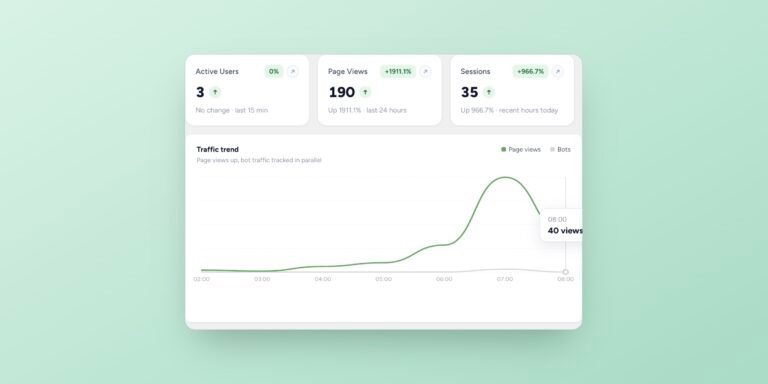
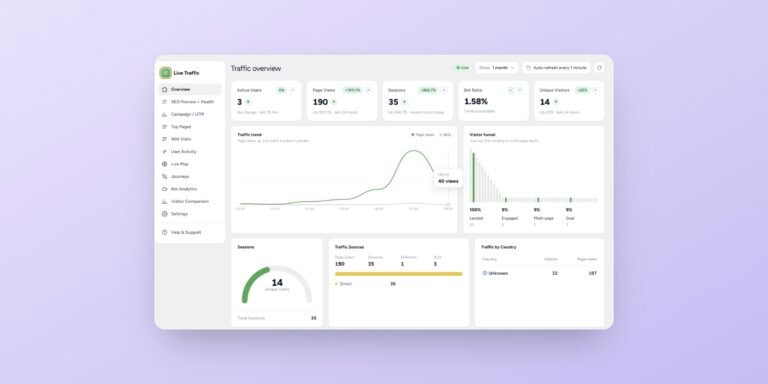
The Free Overview includes active users, page views, sessions, unique visitors, a 24-hour trend, and device, browser, country and referrer breakdowns. Referrers include Direct, Google, Bing, DuckDuckGo, Facebook, LinkedIn, Reddit, YouTube and others when available.
UTM builder and campaign reports in Free
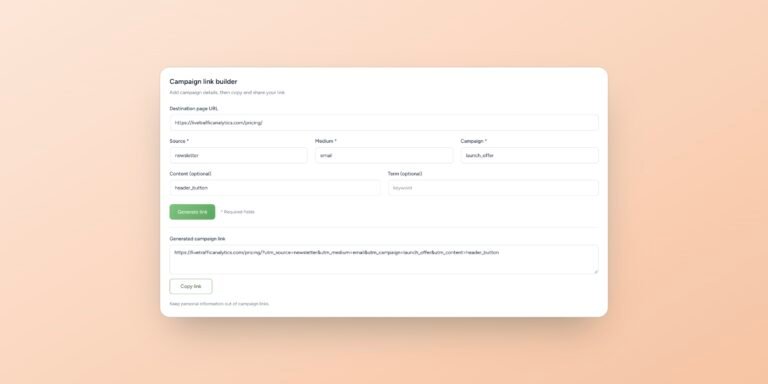
Traffic Analytics → Campaign / UTM includes a link builder and groups sessions by UTM source, medium, campaign, content and term. See campaign features.
404 Visits and SEO Preview + Health
The Free 404 Visits report shows which missing pages real visitors reached, grouped by path and referrer. SEO Preview + Health shows a Google-style search preview and checks titles, meta descriptions, H1s, canonical URLs, noindex rules, image alt text, broken links, robots.txt and sitemaps across the whole site.
Bot ratio and Pro detail
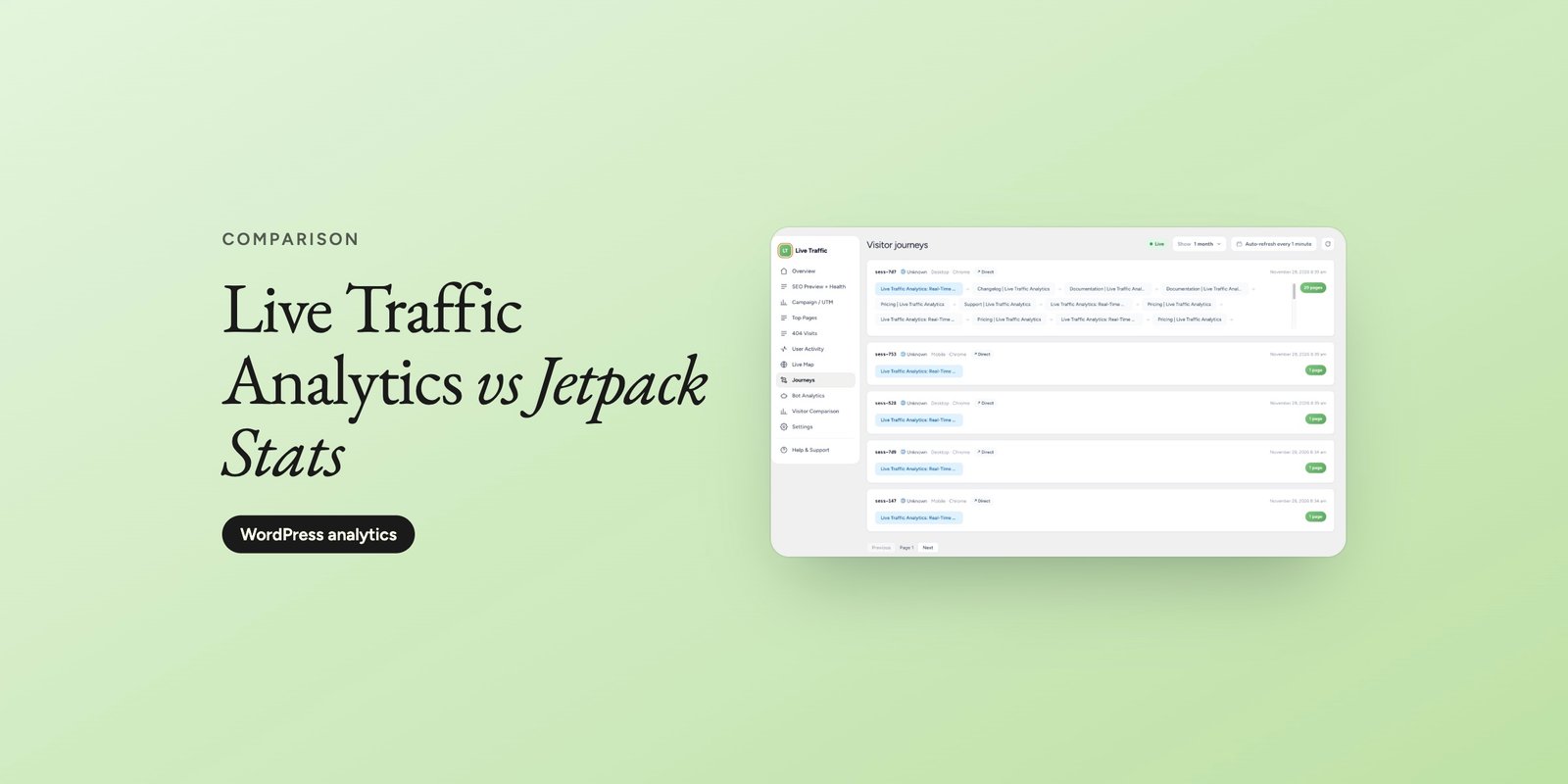
The Free Overview shows bot ratio, bot count and human visitors, and bots are excluded from Top Pages totals. Pro adds named-bot analytics, User Activity, User Journeys, an interactive Live Map, Visitor Comparison and CSV/PDF export (Pro).
Side-by-side comparison
We only filled in cells we could confirm on each product’s public pages. Where a detail was unclear, the cell says “Check their site”.
| Feature | Live Traffic Analytics | Jetpack Stats |
|---|---|---|
| Where data is processed | Your WordPress database | WordPress.com |
| Outside account needed | No | Yes, a WordPress.com connection |
| Real-time visitors | Active users in Free | Yes |
| Top pages and referrers | Free | Free tier |
| Device stats | Free | Listed on the paid plan |
| UTM tracking | Free, with link builder | Listed on the paid plan |
| 404 visit report | Free | Check their site |
| On-page SEO checks | SEO Preview + Health (Free) | Check their site |
| Link clicks, video plays, downloads | Not offered | Yes |
| Likes, comments and author stats | Not offered | Yes |
| Mobile app access | Not offered | Yes, in the WordPress app |
| Visitor journeys and live map | Pro | Check their site |
| Export | CSV/PDF (Pro) | CSV export |
Feature details checked against each product’s public pages in November 2026. Products change, so confirm on their site before deciding.
For current plans, see the Jetpack pricing page and our Live Traffic Analytics pricing.
Which one fits your site?
Think about where you want your data to live and which reports you will actually use.
Jetpack Stats is a good fit if
- You already use Jetpack or a WordPress.com account.
- You want engagement data such as likes, comments, clicks and downloads.
- You like checking stats from the WordPress mobile app.
- You prefer processing to happen off your own server.
Live Traffic Analytics is a good fit if
- You want analytics stored in your own WordPress database.
- You want UTM reports and device breakdowns in the free plugin.
- You want 404 visits and SEO page checks next to your traffic numbers.
- You want visitor-level journeys and a live map later through Pro.
Tip: if your site uses full-page caching and you plan to show a live visitor count with the 0 shortcode, exclude that page from the cache so the number stays current.
Switching or running both
You can install Live Traffic Analytics without removing Jetpack Stats. Just remember that reports start from visits recorded after install, and that two tools will rarely show identical numbers because they count visits and filter bots differently.
- Install the Free plugin from WordPress.org and activate it.
- Go to Traffic Analytics → Overview and confirm visits are coming in.
- Open Top Pages after a few days and compare the order of your most-read posts with what you see in Jetpack.
- Check 404 Visits and fix any broken internal links you find.
- Decide after a couple of weeks whether you need one tool or both.
For help with each tab, see the documentation, or read how to find your most popular WordPress pages.
Frequently asked questions
Does Live Traffic Analytics need a WordPress.com account?
No. It records visits in your own WordPress database and does not need a WordPress.com or Google Analytics account.
Can I use Jetpack Stats and Live Traffic Analytics at the same time?
Yes. They run independently. Expect small differences in numbers, since each tool has its own way of counting sessions and filtering bots.
Are UTM reports free in Live Traffic Analytics?
Yes. The Campaign / UTM link builder and reports are included in the Free plugin.
Does Live Traffic Analytics show stats in a mobile app?
No. Reports are viewed in wp-admin under Traffic Analytics, which you can open in a mobile browser.
Try it on your site
If you want your traffic data on your own site, with UTM, 404 and SEO reports included, install Live Traffic Analytics free from WordPress.org. When you need visitor journeys or the Live Map, compare the Pro plans.