Looking for a WP Statistics alternative usually means you already like the idea of keeping analytics inside WordPress and want to see what else is out there. WP Statistics and Live Traffic Analytics share that self-hosted approach, so the real differences are in which reports come free, how the products are packaged, and what each one focuses on. This guide walks through both so you can pick the one that matches your site.
What the two plugins have in common
Both plugins store analytics in your own WordPress database instead of sending visits to an outside analytics service. WP Statistics states that everything is stored in your WordPress database, and Live Traffic Analytics keeps its data in dedicated tables in the same place.
That shared foundation means neither one needs a Google Analytics account, and both show reports inside wp-admin. If you are new to this idea, our guide to choosing a Google Analytics alternative for WordPress explains why many site owners prefer it.
So the question is not “self-hosted or not”. It is which reports you need on day one, and which tool lays them out in a way that suits how you work.
What WP Statistics does well
WP Statistics is a long-running plugin with a broad free feature set. According to its WordPress.org page and pricing page, the free version includes:
- Traffic overview: visitors, views, top pages and sources, plus an “online now” indicator.
- Visitor detail: visitor profiles and a full visitor journey in the free core.
- Content analytics: stats for posts, pages, categories and authors, plus a block editor panel with post stats.
- Location and devices: countries, regions and cities on a map, plus browsers, systems and device types.
- Reporting: scheduled email reports, XML and CSV export, and 404 error tracking.
- Privacy tools: IP anonymization and hashing on new installs, consent plugin integrations and a privacy audit tool.
Paid add-ons extend this. Its pricing page lists a Real-Time Stats add-on, a Marketing add-on (campaign reports, UTM builder, Google Search Console and goals), Data Plus, Advanced Reporting and more. WP Statistics suits content-heavy sites and multisite networks that want detailed per-post and per-author stats with email reports.
Where Live Traffic Analytics is different
Live Traffic Analytics is one plugin package. The Free version covers a full set of reports, and a Pro licence unlocks visitor-level reports inside the same plugin, with no separate add-ons to manage. Here is where it takes a different path.
Real-time overview in Free
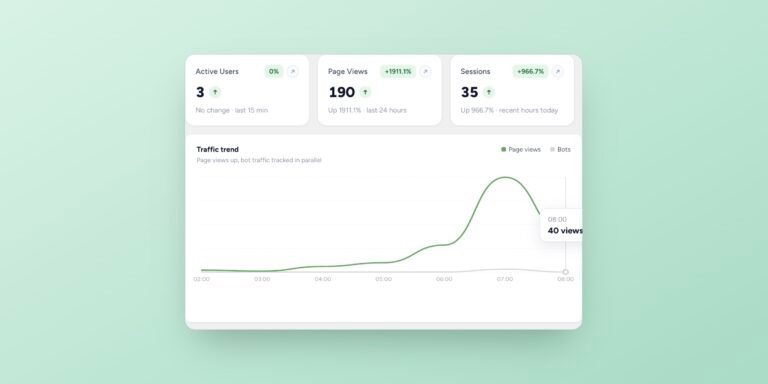
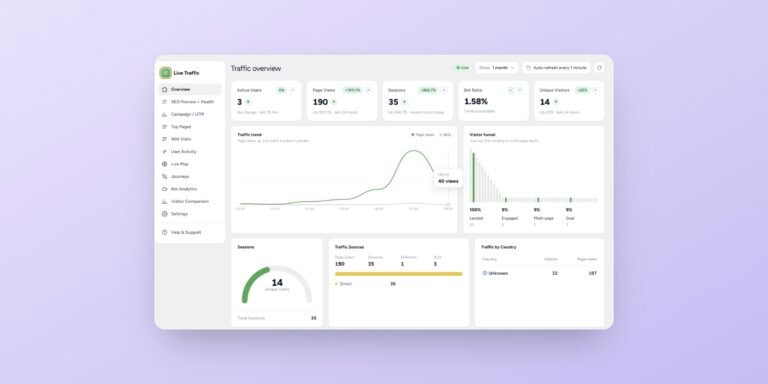
The Free active users count sits at the top of the Overview, next to page views, sessions, unique visitors, a 24-hour trend and KPI change indicators. You can set the dashboard refresh and visitor heartbeat in Settings, anywhere from 10 seconds to 7 days.
UTM builder and campaign reports in Free
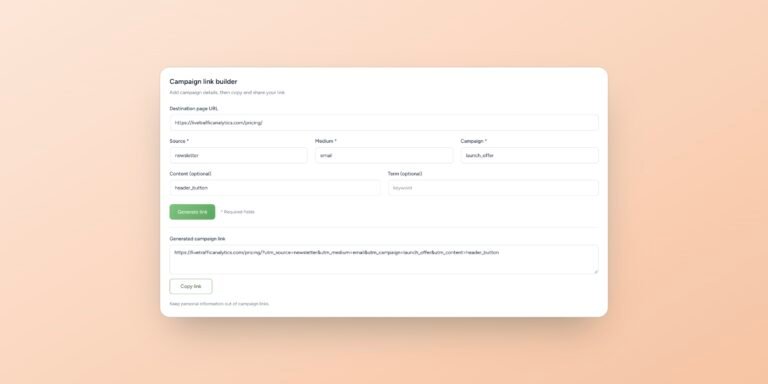
Go to Traffic Analytics → Campaign / UTM to build tagged links and see sessions grouped by source, medium, campaign, content and term. This is part of the Free plugin. Our guide on how to track UTM campaigns in WordPress shows a simple naming convention.
SEO Preview + Health
This is the clearest difference. Traffic Analytics → SEO Preview + Health shows a Google-style desktop and mobile preview and checks published pages for title, meta description, favicon, H1, canonical URL, noindex rules, image alt text, response errors and broken links. It can scan the whole site, flag duplicate metadata and check robots.txt, sitemaps and internal links. See SEO Preview + Health.
Bot ratio you can see
The Free Overview shows bot ratio, bot count and human-visitor count side by side. Bots are also excluded from Top Pages and 404 reports. Pro adds a named-bot breakdown under Bot Analytics.
Pro visitor-level reports
Pro adds User Activity, User Journeys, an interactive Live Map with live visitor markers, Visitor Comparison (today versus yesterday, hour by hour) and CSV/PDF export (Pro).
Side-by-side comparison
Every cell below is based on each product’s public pages. If we could not confirm a point, we wrote “Check their site”.
| Feature | Live Traffic Analytics | WP Statistics |
|---|---|---|
| Where data is kept | Your WordPress database | Your WordPress database |
| Google Analytics needed | No | No |
| Currently online visitors | Active users in Free | “Online now” indicator in free; real-time dashboard is a paid add-on |
| UTM link builder and campaign reports | Free | Marketing add-on (paid) |
| 404 reporting | 404 Visits report (Free) | 404 error tracking (free) |
| On-page SEO checks | SEO Preview + Health (Free) | Check their site |
| Bot ratio shown in overview | Free | Check their site |
| Visitor journeys | Pro | Free |
| Map | Live Map with live markers (Pro) | Geographic map of countries, regions and cities (free) |
| Email reports | Not included | Scheduled email reports (free) |
| Export | CSV/PDF (Pro) | XML/CSV (free) |
| IP anonymization | Optional setting | Anonymized and hashed on new installs |
Feature details checked against each product’s public pages in November 2026. Products change, so confirm on their site before deciding.
For plan details, see the WP Statistics pricing page and our Live Traffic Analytics pricing.
Which one should you choose?
Since both plugins keep data in WordPress, pick based on the reports you will open every week.
WP Statistics may suit you better if
- You want visitor journeys and email reports without paying.
- You publish a lot and want per-author and per-category stats.
- You run a multisite network and want a network admin view.
- You prefer adding only the paid add-ons you need.
Live Traffic Analytics may suit you better if
- You want UTM building and campaign reports in the free plugin.
- You want SEO page checks and 404 visits in the same menu as your traffic.
- You want to see the bot ratio at a glance on the main dashboard.
- You prefer one plugin where Pro unlocks extra reports, rather than separate add-ons.
Tip: running two analytics plugins on one site adds extra database writes for every visit. If you test both, do it for a short period and then keep the one you actually use.
Getting started with Live Traffic Analytics
Reports start from visits recorded after install, so plan a week of data before you judge anything.
- Install and activate the Free plugin from WordPress.org.
- Open Traffic Analytics → Settings. Turn on “Anonymize visitor IP addresses” if you want the last part of each IP stored as 0, and choose how long to keep data.
- Check Traffic Analytics → Overview for active users, sources, countries and devices.
- Build one tagged link in Campaign / UTM for your next email or post.
- Run a whole-site scan in SEO Preview + Health and note the pages with missing titles or alt text.
Admin visits are not tracked, so editing posts will not skew your numbers. The documentation covers each tab in more detail.
Frequently asked questions
Are both plugins self-hosted?
Yes. Both WP Statistics and Live Traffic Analytics store analytics data in your own WordPress database, and neither needs a Google Analytics account.
Is the UTM builder free in Live Traffic Analytics?
Yes. The Campaign / UTM link builder and the campaign reports are part of the Free plugin.
Does Live Traffic Analytics send email reports?
No. Reports are viewed inside wp-admin. If scheduled email reports matter to you, WP Statistics lists them in its free version.
Will Live Traffic Analytics show my past traffic?
No. Live Traffic Analytics reports start from visits recorded after you install it, so you may want to keep your old plugin’s history until you no longer need it.
See your own numbers
The best comparison is your own traffic. Install Live Traffic Analytics free from WordPress.org, try the UTM and SEO reports for a week, and visit pricing when you want visitor journeys and the Live Map.