Privacy friendly analytics in WordPress starts with a simple question: where does your visitor data go, and how long does it stay there? Many site owners want useful traffic reports without sending every visit to an outside platform. This guide walks through the privacy controls in Live Traffic Analytics, from data storage and IP anonymization to retention, cleanup, and reset, and ends with a checklist you can work through today.
What “privacy friendly” should mean in practice
“Privacy friendly” is a phrase that gets used loosely. For a WordPress site owner, it is more useful to think about concrete choices you control rather than a label.
- Where data is stored. On your own server, or on someone else’s platform?
- What is stored. Full IP addresses, or a masked version?
- How long it is kept. Forever, or for a set period you choose?
- Who can see it. Only people with admin access to your site?
- How it can be removed. Can you clean up old records or delete everything?
A tool can help you make sensible choices on each of these points. It cannot decide for you whether your site meets a specific law. For questions about GDPR, CCPA, or any other regulation, talk to a legal adviser who understands your situation.
Your data stays in your own WordPress database
Live Traffic Analytics stores its analytics in dedicated tables inside your site’s own WordPress database. There is no Google Analytics account to connect, and your reports live in wp-admin under Traffic Analytics.
This matters for privacy because you know exactly where the data sits: alongside the rest of your site’s data, on the hosting you already chose. It also means your existing backup, hosting, and access policies apply to analytics too. If you are comparing approaches, our Google Analytics alternative guide covers the broader trade-offs.
Be accurate about browser storage
The tracker uses the visitor’s browser localStorage to support session and visitor reporting. That means it is not accurate to describe the setup as “cookie-free” in your privacy policy or marketing. Describe it honestly: the plugin uses browser storage for analytics, and data is stored in your WordPress database. Your legal adviser can help you decide how to word your policy and whether a consent notice is appropriate for your audience.
What is not tracked
Visits to wp-admin are not tracked, so your own editing sessions and those of other administrators do not become analytics records.
Turn on IP anonymization
IP addresses can be considered personal data in many contexts. Masking them reduces what you store without removing the reports most site owners rely on.
- Go to Traffic Analytics → Settings.
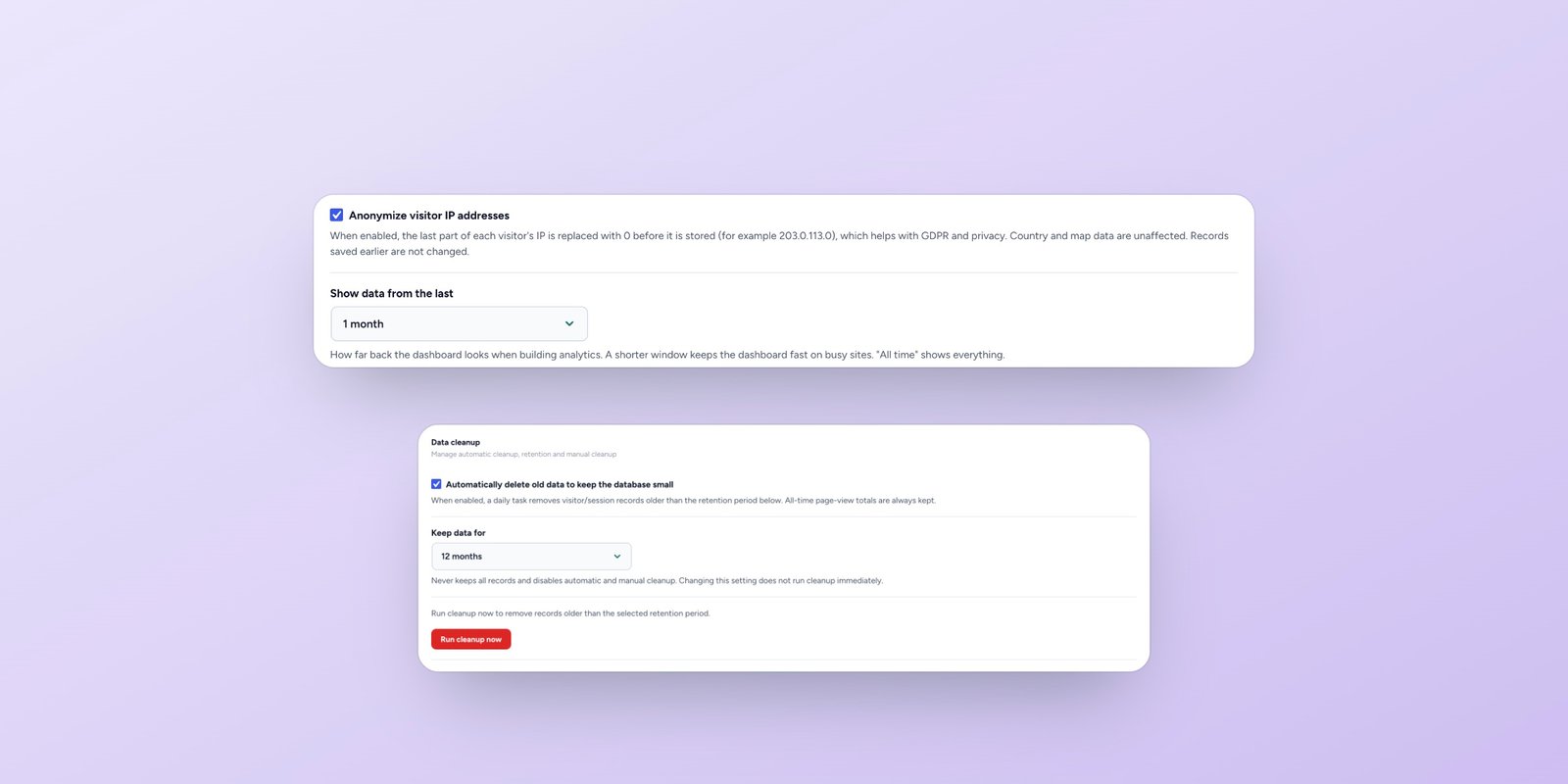
- Enable Anonymize visitor IP addresses.
- Save your settings.
When this setting is on, the last part of each IP address is stored as 0. For example, 203.0.113.45 is stored as 203.0.113.0. Country reporting and the Pro Live Map are not affected, because country comes from host or CDN headers.
One important detail: anonymization applies to new records. Earlier records are not changed. If you want older full IP addresses gone, combine this setting with the retention and cleanup tools below, or reset your data.
Set retention, cleanup, and the reporting window
Keeping analytics forever is rarely necessary. A shorter retention period reduces the amount of personal information you hold and keeps your database smaller.
Automatic cleanup
- Go to Traffic Analytics → Settings → Data cleanup.
- Enable Automatically delete old data to keep the database small.
- Choose a value for Keep data for: Never, or from 1 to 12 months.
- Click Run cleanup now if you want older records removed straight away.
All-time page-view totals are always kept, so you do not lose the long-term picture of how much your site has been viewed. Detailed records older than your chosen period are removed.
Check database usage
The Settings page includes a Database usage view. Glance at it after enabling cleanup to see the effect, and check it occasionally on busy sites.
Limit the reporting window
Retention controls how long data is stored. The reporting window controls how much of it appears on the dashboard. Under Traffic Analytics → Settings → Show data from the last, you can choose All time or a window from 1 to 12 months.
A shorter window keeps day-to-day reviews focused on recent trends. It is a display choice rather than a deletion tool, so use it alongside retention, not instead of it. Export (Pro) also uses this saved reporting window, so a narrower window means a narrower export.
Know how to reset everything
Sometimes you need a clean start: after a site migration, after testing, or when you decide to change your privacy approach entirely. The Settings page includes Reset data with a Delete All Data option.
This permanently removes the plugin’s analytics data and cannot be undone. Before using it, take a database backup if you might need the old figures, and consider using Export (Pro) to save a CSV or PDF copy first.
Tip: Write your chosen retention period and IP setting into an internal note or your privacy documentation, so anyone who manages the site later knows what was decided and why.
Visitor-level reports and extra care
The Free reports are mostly aggregate: totals, breakdowns, top pages, and the funnel. Pro adds visitor-level reports such as User Activity, User Journeys, and the Live Map. These are useful for understanding behavior, but they show more detail about individual sessions.
If you use them, review your privacy policy, enable IP anonymization, and keep a sensible retention period. Our guide to tracking a visitor journey in WordPress explains what journey data includes. You can compare Free and Pro on the pricing page.
Privacy setup checklist
| Step | Where | Done? |
|---|---|---|
| Enable IP anonymization | Settings → Anonymize visitor IP addresses | ☐ |
| Turn on automatic cleanup | Settings → Data cleanup | ☐ |
| Choose a retention period | Settings → Keep data for | ☐ |
| Run a first cleanup | Settings → Run cleanup now | ☐ |
| Set a reporting window | Settings → Show data from the last | ☐ |
| Review database usage | Settings → Database usage | ☐ |
| Limit admin access to trusted users | Users in wp-admin | ☐ |
| Update your privacy policy wording | Your privacy page | ☐ |
| Ask a legal adviser about consent and compliance | Outside WordPress | ☐ |
For more detail on each setting, see the documentation and the privacy feature page.
Frequently asked questions
Will these settings make my site meet GDPR rules?
No plugin can make that promise. The settings help you store less data and keep it for less time, but compliance depends on your whole site and situation. Talk to a legal adviser.
Is Live Traffic Analytics cookie-free?
No. The tracker uses browser localStorage, so describe it accurately in your privacy policy rather than calling it cookie-free.
Does IP anonymization change old records?
No. It applies to new records. Use data cleanup or Delete All Data if you need older records removed.
Will cleanup delete my all-time page-view totals?
No. All-time page-view totals are always kept. Cleanup removes detailed records older than your chosen period.
Keep your analytics useful and lean
Good privacy habits are mostly about a few deliberate settings: mask IPs, keep data only as long as you need it, and know how to remove it. If you are new to the plugin, our guide to seeing live visitors in WordPress is a good next read. When you are ready, install Live Traffic Analytics free from WordPress.org and set up privacy friendly analytics in WordPress.