Totals tell you how many people visited, but a visitor journey in WordPress tells you the order they moved through your pages. Seeing that a reader went from a blog post to a feature page and then left gives you something concrete to improve. This guide explains what session-based journey tracking is, how to use the Pro Journeys report in Live Traffic Analytics, and what to change when paths end too early.
What a visitor journey is (and what it is not)
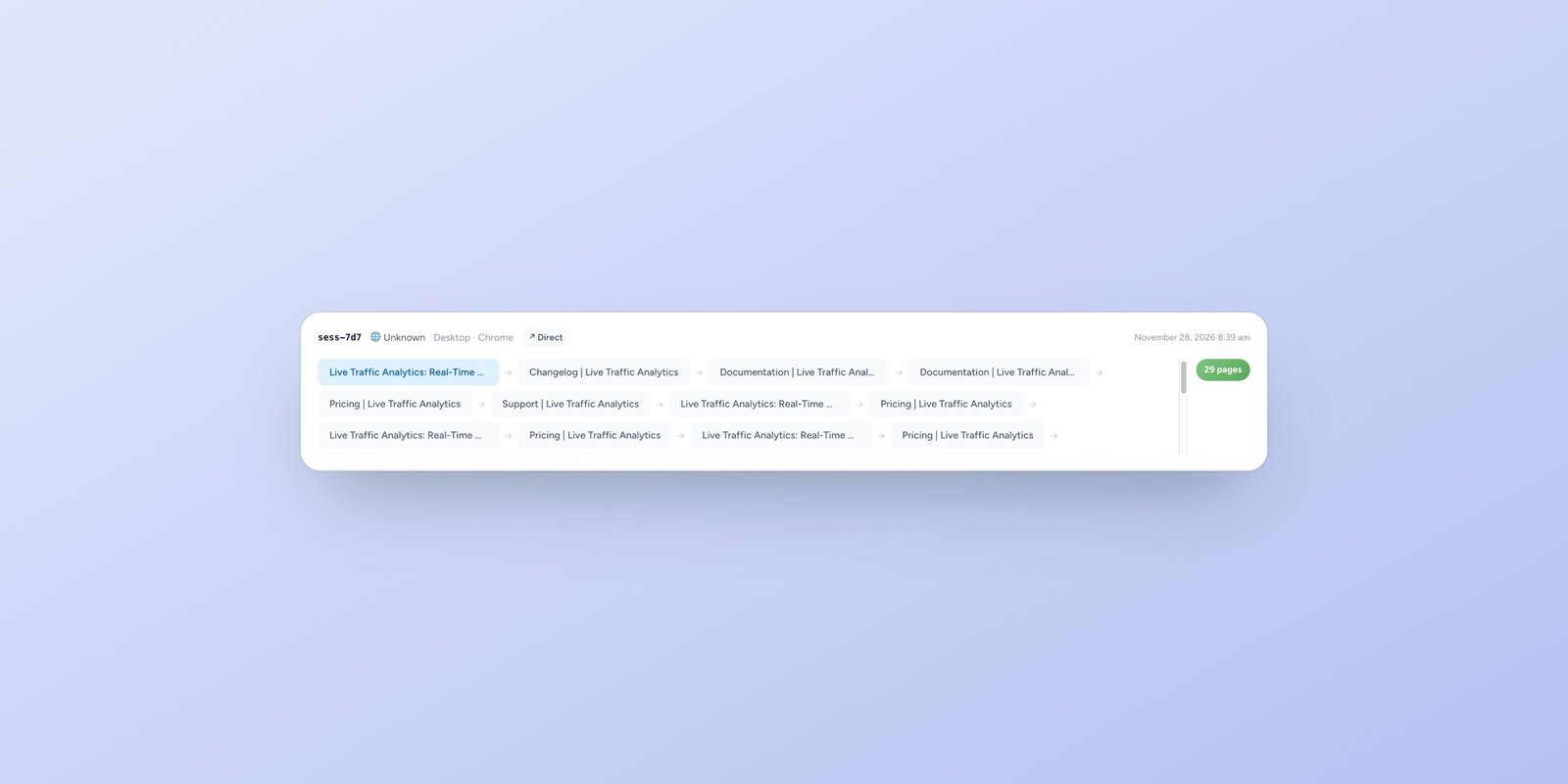
A visitor journey is the ordered list of pages one visitor viewed during a single session. If someone lands on your homepage, opens a guide, then visits your contact page, that is a three-step journey. The value is in the sequence, not just the individual page counts.
It is worth being clear about what journey data does not do. It is not a sales attribution model, and it does not tell you which ad or campaign earned a purchase. It shows the path through your own site during one session. That is still very useful, because navigation, content order and calls to action all shape that path.
Why path data helps you improve a site
Page-level reports such as Top Pages answer “which pages are popular?” Journey data answers a different question: “what do people do next?” That second question is where most site improvements come from.
- Navigation: if visitors often bounce between two pages, your menu or links may not make the next step clear.
- Content sequences: a beginner guide that rarely leads to the intermediate guide may need a stronger link between them.
- Calls to action: a feature page that sends few people onward may need a clearer button or a better placed link.
- Support content: if visitors reach the support page straight after reading documentation, a section of that documentation may be unclear.
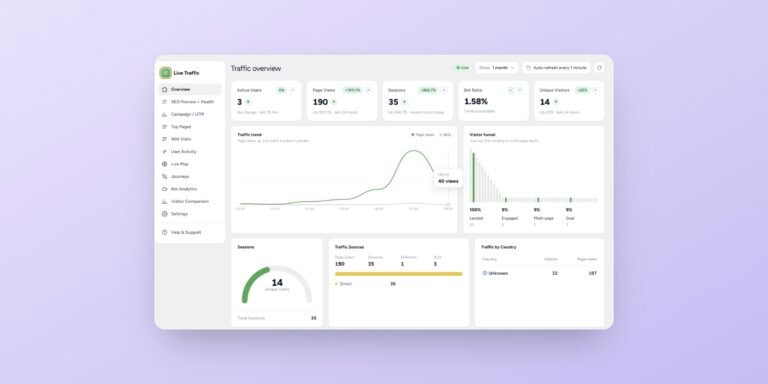
The free visitor funnel already shows how many sessions land, engage, view multiple pages and reach a goal. Journeys add the detail of which pages made up those multi-page sessions.
Open the Journeys report
User Journeys is part of Live Traffic Analytics Pro. Pro is the same plugin you install from WordPress.org, with an active licence unlocking the extra reports. Once your licence is active:
- Log in to wp-admin as an administrator.
- Go to Traffic Analytics → Journeys.
- Browse the recent journey list. Each entry represents one visitor session.
- Open a journey to see the ordered pages viewed during that session.
Like every report in the plugin, Journeys starts from visits recorded after installation, and visits to wp-admin are not tracked. If you have only just activated the plugin, give it a few days of normal traffic before looking for patterns. The documentation covers licence activation step by step.
Reading session paths
When you first open the report, resist the urge to study every single session. Individual journeys are noisy. Instead, skim a batch of recent journeys and look for repeated shapes.
Patterns worth noting
- Short single-page sessions on pages meant to lead somewhere else.
- Common second pages: where people go most often after a specific landing page.
- Loops: visitors returning to the same page repeatedly, which can signal confusion.
- Unexpected exits: journeys that end on a page you expected to be the middle step.
For extra context on individual visits, the Pro User Activity tab shows recent visitor records with browser, device, referrer and time-on-page details. Pairing the two helps you see whether a short journey happened mainly on mobile, for example.
Example journeys and what they suggest
Here are a few common path shapes and how you might respond. These are illustrations, not data from any real site.
| Journey | What it may suggest | Possible improvement |
|---|---|---|
| Blog post → feature page → pricing page | Content is guiding interested readers toward a decision | Make sure the pricing page answers common questions clearly |
| Blog post → exit | The post satisfied the reader or offered no obvious next step | Add a relevant related link or call to action near the end |
| Landing page → documentation → support page | Visitors are trying to solve a problem and may be getting stuck | Review the documentation page they read just before support |
| Homepage → about → homepage → exit | Visitors may not find what they came for | Check whether the homepage clearly points to key pages |
What to improve when journeys end too early
A journey that ends after one page is not automatically bad. Someone looking up a quick answer may leave happy. It becomes a problem when the page was designed to lead somewhere and consistently does not.
Strengthen the next step
Every important page should have one obvious next action. That could be a related guide, a feature page or a contact form. Place it where readers naturally finish, not only in the sidebar.
Improve internal links
Add links in the body text that point to the logical next page. Descriptive link text such as “see how the funnel report works” helps readers know what they will get.
Check the page on mobile
If short journeys cluster on phones, the call to action may be pushed far down the page or hard to tap. Our guide to mobile vs desktop traffic covers what to test.
Fix dead ends
If a journey ends on a missing page, the 404 Visits report will show the broken URL and where visitors came from.
Tip: change one thing at a time. If you rewrite the call to action and the navigation in the same week, it is hard to tell which change affected the paths you see next.
A privacy reminder
Journey data is stored in dedicated tables in your own WordPress database, not sent to a third-party analytics account. Even so, visitor-level reports deserve care. Review your site’s privacy policy so it describes the analytics you run, and consider turning on Anonymize visitor IP addresses under Traffic Analytics → Settings. That setting stores the last part of each IP address as 0, and it applies to new records only.
You can also set a data retention period so older records are removed automatically. If you have questions about legal obligations in your region, talk to a legal adviser. You can read more about the plugin’s controls on the privacy features section.
Frequently asked questions
Is User Journeys available in the free plugin?
No. User Journeys is a Pro report. The free plugin includes the visitor funnel, Top Pages and other site-level reports.
Does journey tracking show which campaign led to a sale?
No. A journey shows the order of pages viewed in one session on your site. It is not a sales or conversion attribution tool.
Are my own admin visits included in journeys?
No. Visits to wp-admin are not tracked, so your editing sessions do not appear in the report.
Will I see journeys from before I installed the plugin?
No. Reports start from visits recorded after installation, so allow some time for journeys to build up.
Start seeing how visitors move through your site
Path data turns guesses about navigation into something you can actually check. See what Pro includes on the Journeys feature page and compare plans on the pricing page. New to the plugin? Install Live Traffic Analytics free from WordPress.org, then upgrade to Pro to unlock User Journeys and visitor-level path reporting.