If you are comparing options for an Independent Analytics alternative, you are likely already sold on keeping analytics inside WordPress rather than in an outside service. Independent Analytics and Live Traffic Analytics both store data in your WordPress database, so the choice comes down to which reports sit in the free version, which ones are paid, and what each tool focuses on. Here is a fair, practical comparison.
The shared foundation: data in your WordPress database
Independent Analytics states on its WordPress.org page that all data is created and stored in your WordPress database and that it does not communicate with external servers. Live Traffic Analytics also records visits in dedicated tables in your own WordPress database.
So both tools avoid the need for a Google Analytics account, and both show their reports inside wp-admin. If you want background on why that matters, read our guide to privacy friendly analytics in WordPress.
With the storage question settled, it makes sense to look at the reports themselves and how the free and paid versions are split.
What Independent Analytics does well
Independent Analytics has a clean, report-focused design and a generous free tier. According to its WordPress.org page, the free version includes:
- Traffic metrics: views, visitors, sessions, bounce rate, session duration and views per session.
- Content and sources: pages, landing pages, referrers, traffic sources and author stats.
- Location and technology: countries and cities with an interactive world map, plus device, browser and operating system breakdowns.
- Sharing and reporting: CSV and PDF export, saved reports and sharing access with other users.
- Handy extras: a dashboard widget, admin toolbar stats, a public view counter and automatic deletion of old data.
Its Pro version adds a Campaigns report for UTM tracking, real-time analytics, click tracking, eCommerce and revenue tracking for several store plugins, form tracking, User Journeys and scheduled email reports. Independent Analytics suits bloggers, stores and agencies who want polished reports, and Pro users who need sales and form data in WordPress.
Where Live Traffic Analytics is different
Live Traffic Analytics puts real-time traffic, campaign reports, 404 visits and SEO checks into the Free plugin, then uses Pro for visitor-level detail. Here are the main differences.
Real-time active users in Free
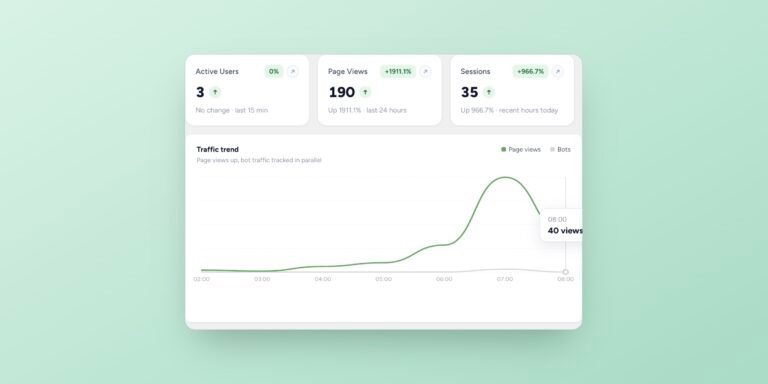
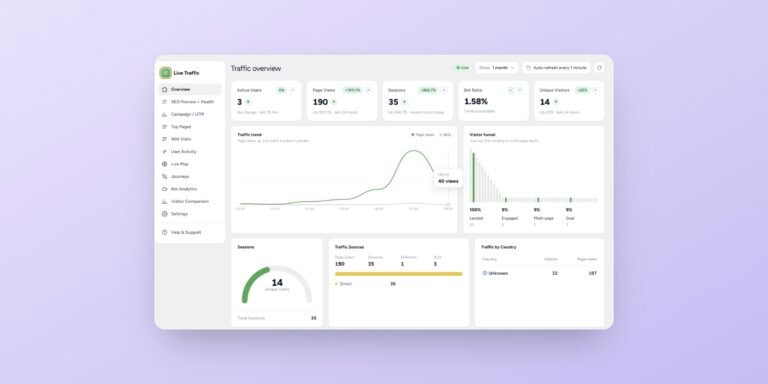
The Free Overview opens with active users, page views, sessions, unique visitors, a 24-hour trend and KPI change indicators. You can set how often the dashboard refreshes in Settings. For a walkthrough, see how to see live visitors on WordPress.
Campaign / UTM reports and link builder in Free
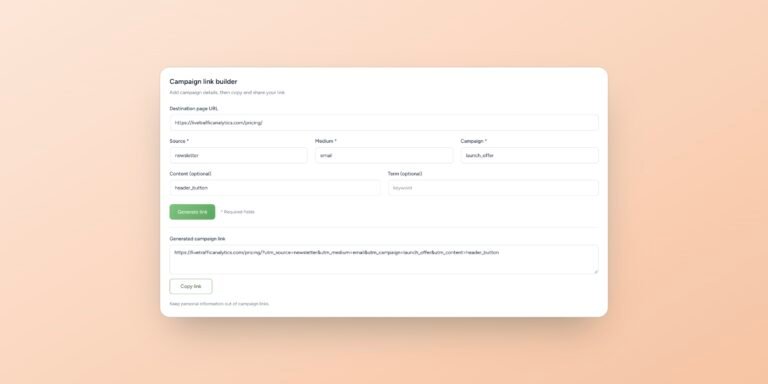
Go to Traffic Analytics → Campaign / UTM to create tagged links and see sessions grouped by UTM source, medium, campaign, content and term, including tagged visits made inside an existing session. Details are on the features page.
A dedicated 404 Visits report
Traffic Analytics → 404 Visits lists recorded visits to real WordPress 404 pages, grouped by missing path and referring site, with date filters and bots excluded. It helps you spot old links and broken internal links that real people are following.
SEO Preview + Health
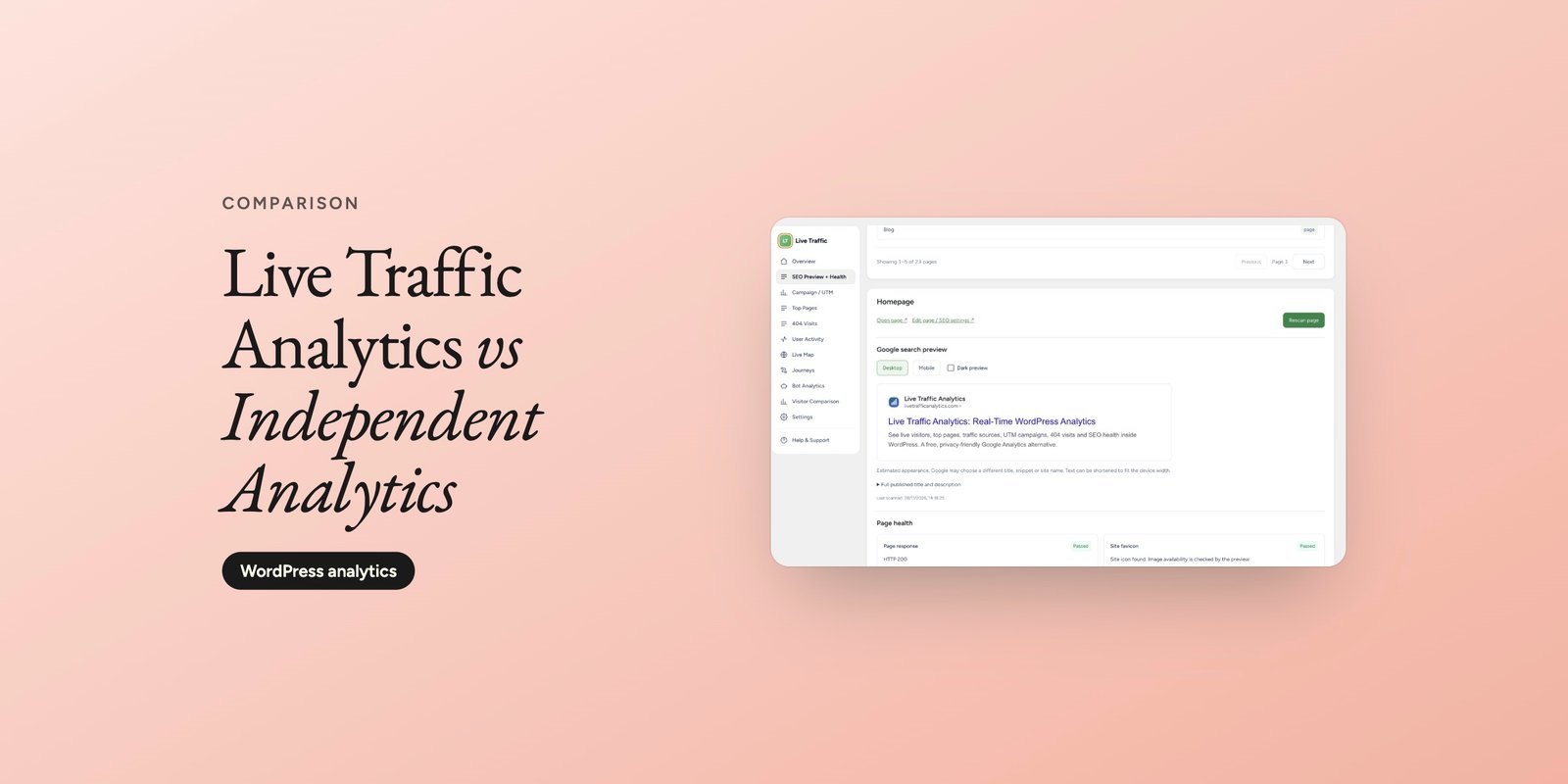
The Free SEO Preview + Health tab shows a Google-style desktop and mobile preview and checks published pages for title, meta description, favicon, H1, canonical URL, noindex rules, image alt text, response errors and broken links. It also scans the whole site, flags duplicate metadata and checks robots.txt, sitemaps and internal links.
Bot ratio and named bots
The Free Overview shows bot ratio, bot count and human visitors, so you can see how much automated traffic reached the site. Pro adds a named-bot breakdown, along with User Activity, User Journeys, an interactive Live Map, Visitor Comparison and CSV/PDF export (Pro).
Side-by-side comparison
Cells are based on each product’s public pages. Where we could not confirm something, we wrote “Check their site”.
| Feature | Live Traffic Analytics | Independent Analytics |
|---|---|---|
| Where data is kept | Your WordPress database | Your WordPress database |
| Google Analytics needed | No | No |
| Real-time visitors | Active users in Free | Pro |
| UTM campaign reports | Free, with link builder | Campaigns report in Pro |
| 404 visit report | Dedicated report (Free) | Check their site |
| On-page SEO checks | SEO Preview + Health (Free) | Check their site |
| Bot ratio shown in overview | Free | Check their site |
| Device, browser and country reports | Free | Free |
| Map | Live Map with live markers (Pro) | Interactive world map (free) |
| Visitor journeys | Pro | Pro |
| Click, form and eCommerce tracking | Not offered | Pro |
| Email reports | Not included | Pro |
| Export | CSV/PDF (Pro) | CSV and PDF (free) |
Feature details checked against each product’s public pages in November 2026. Products change, so confirm on their site before deciding.
For plan details, see the Independent Analytics pricing page and our Live Traffic Analytics pricing.
Which one should you pick?
Both tools keep data on your site, so think about the reports you would otherwise pay for.
Independent Analytics may be the better choice if
- You want CSV and PDF export and saved reports in the free version.
- You run a store and want eCommerce and revenue tracking inside WordPress.
- You need form tracking or outbound click and download tracking.
- You send scheduled email reports to clients.
Live Traffic Analytics may be the better choice if
- You want real-time active users without upgrading.
- You want UTM campaign reports and a link builder in the free plugin.
- You want a dedicated 404 visits report and SEO page checks next to your traffic.
- You want a bot ratio on the main dashboard to keep spikes in context.
Tip: whichever tool you choose, set a data retention period early. In Live Traffic Analytics, go to Settings and use “Keep data for” to delete old records automatically. All-time page-view totals are always kept.
Testing Live Traffic Analytics on your site
Reports begin with visits recorded after install, so allow about a week of data before comparing.
- Install the Free plugin from WordPress.org and activate it.
- Go to Traffic Analytics → Settings and decide whether to turn on “Anonymize visitor IP addresses”.
- Check Overview for active users, referrers and the bot ratio.
- Create a tagged link in Campaign / UTM for your next newsletter.
- Review 404 Visits and SEO Preview + Health after a few days and fix the top issues.
Visits to wp-admin are not tracked, so your own editing will not affect the numbers. The documentation explains each report.
Frequently asked questions
Do both plugins store data in WordPress?
Yes. Independent Analytics and Live Traffic Analytics both keep analytics data in your WordPress database, and neither needs a Google Analytics account.
Is real-time data free in Live Traffic Analytics?
Yes. The Free Overview shows active users currently on your site, along with a 24-hour trend.
Does Live Traffic Analytics track WooCommerce sales?
No. It focuses on traffic, sources, pages, campaigns, 404 visits and site health. For sales tracking inside WordPress, Independent Analytics lists eCommerce tracking in its Pro version.
What does Live Traffic Analytics Pro add?
Pro adds User Activity, User Journeys, the interactive Live Map, named-bot analytics, Visitor Comparison and CSV/PDF export, while keeping every Free report.
Give it a try
If real-time traffic, UTM reports, 404 visits and SEO checks in one free plugin sound useful, install Live Traffic Analytics free from WordPress.org. When you want visitor journeys and the Live Map, see the Pro plans.