A live map of WordPress traffic gives you a quick, visual sense of where your current visitors are in the world. It is especially handy during a launch or a social share, when you want to see whether attention is coming from the regions you targeted. This guide covers how the Pro Live Map in Live Traffic Analytics works, where its location data comes from, and when a map should and should not shape your decisions.
What a live visitor map is good for
Numbers in a table are precise, but they are slow to read when things are moving quickly. A map shows the broad picture at a glance: a cluster in one region, a scattering across another, nothing at all where you expected interest.
That makes it a good companion for moments when traffic changes fast. Publishing a post for an international audience, sending a newsletter in the morning in one time zone, or getting shared in a regional community are all times when geographic context helps you understand what is happening right now.
A map is about context, not measurement. For totals over a reporting window, the free country breakdown in the Overview is the better tool. The map shows who is active at the moment.
Open the Live Map
Live Map is part of Live Traffic Analytics Pro. It runs inside the same plugin you install from WordPress.org once a Pro licence is active. To open it:
- Log in to wp-admin as an administrator.
- Go to Traffic Analytics → Live Map.
- Let the map load. Markers appear for visitors currently active on your site.
- Zoom and pan to explore regions, then click markers for more detail.
The map refreshes based on the Dashboard data refresh and Visitor heartbeat update settings under Traffic Analytics → Settings. Shorter intervals feel more live, while longer intervals ask less of your server. The documentation explains how to pick sensible values.
Markers, clustering and popups
The map uses three simple elements. Knowing what each one means makes the view much easier to read.
| Element | What it shows | How to use it |
|---|---|---|
| Visitor marker | An active visitor’s approximate location | Spot where current visitors are concentrated |
| Cluster | Several nearby markers grouped into one, with a count | Zoom in to split a cluster into individual markers |
| Popup | Location and map detail for the selected marker | Click a marker to see the details behind it |
Clustering keeps the map readable when many visitors are in the same area. Without it, a busy city would become an unreadable pile of pins. As you zoom in, clusters break apart so you can see the spread more clearly.
Where the location data comes from
Country information in Live Traffic Analytics comes from headers supplied by your host or CDN. Many hosts and services such as CDNs add a header that indicates the visitor’s country. The plugin reads that value rather than running its own location lookup.
This has a few practical consequences:
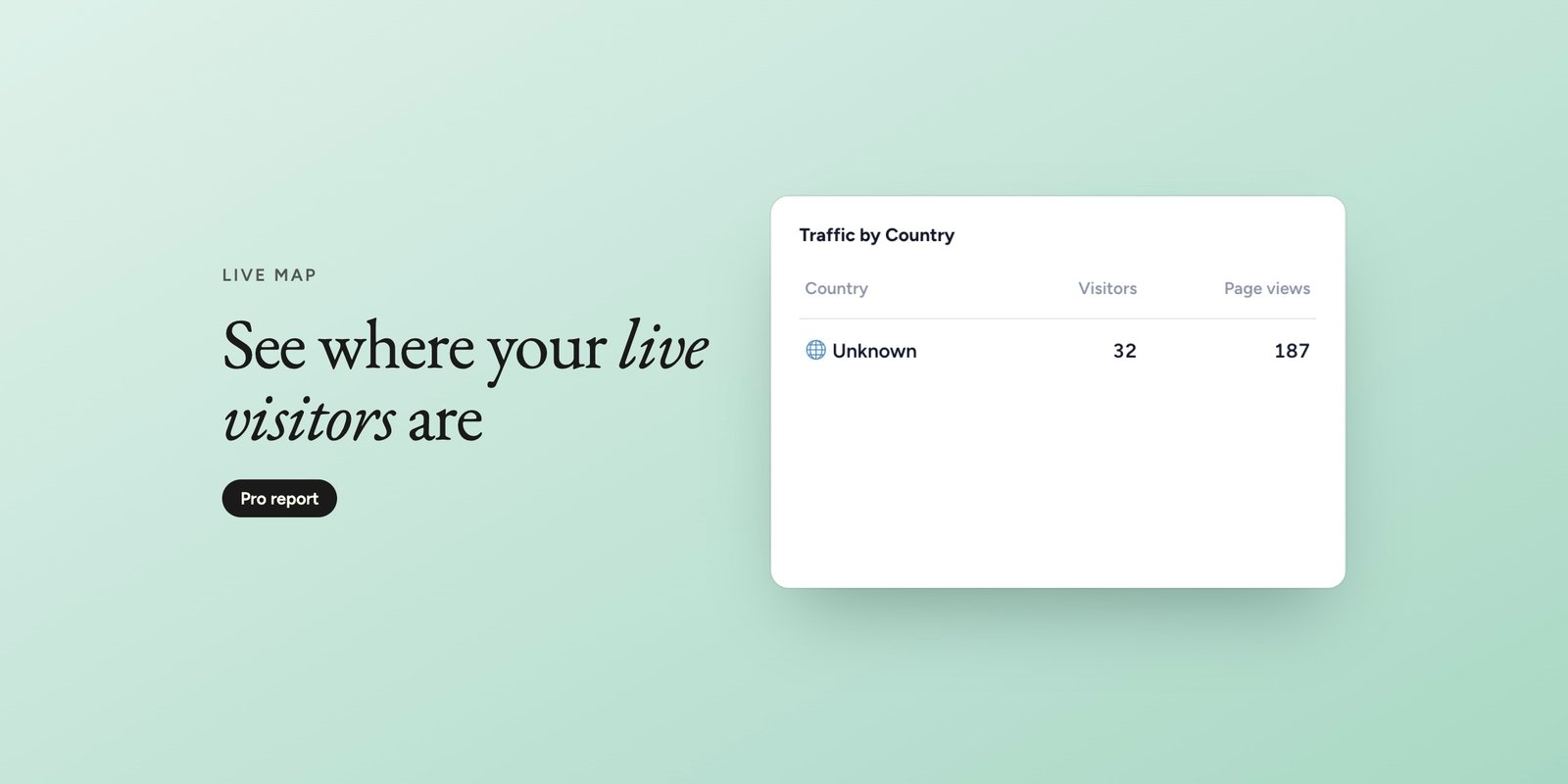
- Local development sites usually do not have these headers, so visitors may appear as “Unknown”.
- Some hosts do not provide a country header at all, which also leads to “Unknown” values.
- VPNs and proxies can make a visitor appear to be somewhere they are not.
So treat the map as approximate. It is reliable enough to see broad regional patterns, but it should not be read as a precise record of where each person is sitting.
Tip: if most of your visitors show as “Unknown” on a live site, ask your host whether they can pass a country header, or check whether your CDN offers one.
Privacy and the map
The map tiles, the background imagery of streets and borders, load from OpenStreetMap. Your analytics records stay in dedicated tables in your own WordPress database, and the map is shown only inside wp-admin to users who can access the plugin’s reports.
If you prefer to store less detail, turn on Anonymize visitor IP addresses in Settings. The last part of each IP address is stored as 0, for example 203.0.113.0, and country and map data are not affected. Earlier records are not changed, so enable it early if you plan to use it. You can learn more about these controls in the privacy section of the features page, and for questions about legal requirements in your region, talk to a legal adviser.
Three good uses for a live map
Watching a launch or announcement
When you publish something important, the map shows whether visitors are arriving from the markets you were aiming for. Combine it with the active users count in the Overview to see both the size and the spread of the response.
Timing posts and newsletters
If you notice visitors clustering in one region at certain times of day, that can inform when you send emails or share new posts. Confirm the pattern over several days before changing your schedule.
Checking a regional campaign
Running a promotion aimed at one country? A quick look at the map while it runs can confirm that tagged links are reaching the right audience. For detail on the campaign itself, use the free Campaign / UTM report.
Three cases where a map should not decide on its own
Opening a new market
A handful of markers in a new country is interesting, but it is not enough evidence for a business expansion. Look at longer-term country totals, enquiries and other research before making that call.
Judging a campaign’s value
The map shows where active visitors are, not whether a campaign produced sales. It is not a conversion or attribution tool.
Reacting to one quiet hour
An empty region at a single moment may just reflect time zones. Use the Pro Visitor Comparison report or the 24-hour trend in the Overview for a fairer view of how activity changes through the day.
Frequently asked questions
Is the Live Map included in the free plugin?
No. Live Map is a Pro feature. The free Overview includes a country breakdown with visitor and view totals.
Why do some visitors show as “Unknown”?
Country data comes from host or CDN headers. Local sites and some hosts do not send these headers, so the location cannot be shown.
Does enabling IP anonymization break the map?
No. Country and map data are not affected when the last part of the IP address is stored as 0.
Where do the map tiles come from?
The map tiles load from OpenStreetMap. Your analytics records stay in your own WordPress database.
Add geographic context to your live traffic
A live map will not replace your reports, but it makes busy moments much easier to understand. Take a look at the Live Map feature and compare plans on the pricing page. To get started, install Live Traffic Analytics free from WordPress.org, then unlock Pro Live Map for real-time geographic context inside WordPress. If you are new to real-time data, our guide to seeing live visitors in WordPress is a good place to begin.