Knowing your WordPress traffic sources tells you where visitors were just before they landed on your site. Was it a search engine, a social post, a newsletter, or a link someone typed from memory? This guide shows you how to read the source breakdown in Live Traffic Analytics, what each referrer means, and why “Direct” is rarely as simple as it sounds.
Why traffic sources matter more than total visits
A total visitor number tells you how busy the site was. It does not tell you why. Two weeks with the same number of sessions can have completely different stories behind them: one driven by search, the other by a single shared Reddit thread.
Sources give you that missing context. When you know which channels send people, you can decide where to spend your limited time. If LinkedIn quietly sends steady visits every week while X sends almost nothing, that is a useful signal for your next month of posting.
Sources also help you read spikes calmly. A sudden jump in page views is less alarming, or less exciting, once you can see that it came from one referrer rather than from a broad change across the site.
Where to find the source breakdown
The referrer and source breakdown is part of the Free plugin, so you do not need a Pro licence to use it. Here is how to open it:
- Install Live Traffic Analytics from WordPress.org and activate it.
- In wp-admin, go to Traffic Analytics → Overview.
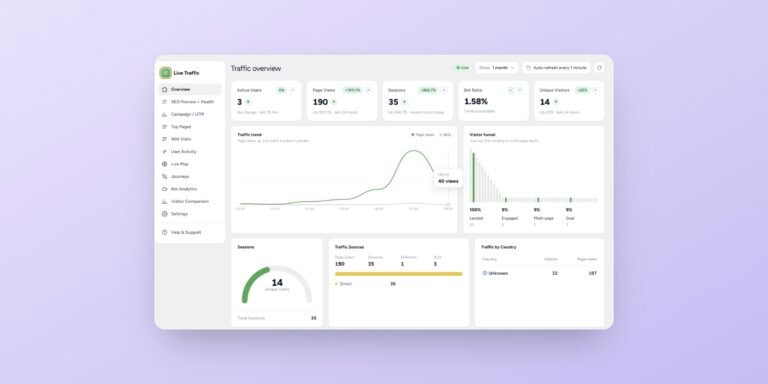
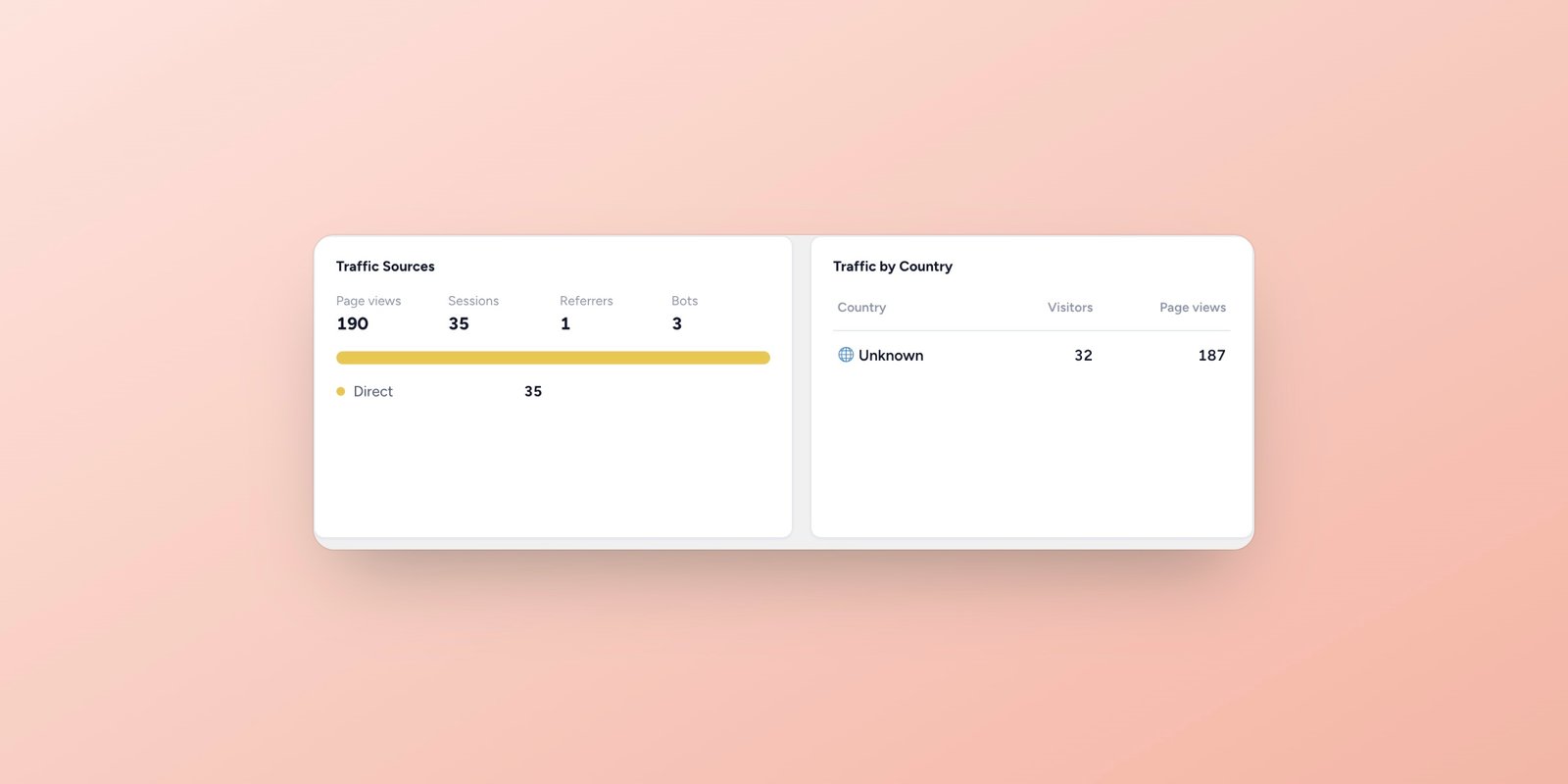
- Scroll to the referrer/source section next to the device, browser, and country breakdowns.
- Check the reporting window under Traffic Analytics → Settings → Show data from the last so you know which period you are looking at.
Remember that reports start from visits recorded after installation. If you installed the plugin yesterday, your source breakdown reflects one day of data, so give it a few weeks before drawing conclusions. You can read more about the report on the traffic sources feature page.
What each referrer means
When a browser follows a link to your site, it usually passes along the address of the page it came from. The plugin groups those referrers into familiar names when they are available. The table below explains what each one typically represents.
| Source | What it usually means | What to look at next |
|---|---|---|
| Direct | No referrer was passed with the visit | Pair with UTM tags to reduce guesswork |
| A visitor clicked through from Google | Top Pages to see which pages they landed on | |
| Bing | A visitor arrived from Bing | Compare with Google over several weeks |
| DuckDuckGo | A visitor arrived from DuckDuckGo | Often a privacy-minded audience |
| Yahoo | A visitor arrived from Yahoo | Usually a smaller, steady share |
| X/Twitter | A click from a post or profile on X | Match timing to when you posted |
| A click from a Facebook post, page, or group | Check whether shares or your own posts drove it | |
| A click from a LinkedIn post or profile | Useful for B2B and service content | |
| A click from a bio link, story, or post | Tag bio links with UTM for clarity | |
| A click from a thread or comment | Spikes are common and often short | |
| YouTube | A click from a video description or channel | Link each video with its own campaign tag |
Note the words “when available.” Some apps and browsers do not pass a referrer at all, which is exactly why the next section matters.
What “Direct” really means
Many site owners assume Direct means “someone typed my URL.” Sometimes it does. More often, Direct is a bucket for visits that arrived without any referrer information, for any reason.
Common reasons a visit shows as Direct
- Typed URLs and bookmarks. The classic case: a returning reader who knows your address.
- Links in email. Many desktop and mobile email apps do not send a referrer when someone clicks a link.
- Links inside apps. Messaging apps and some social apps open links in a way that strips the referrer.
- Documents and PDFs. A link clicked from a PDF, slide deck, or spreadsheet usually has no referring page.
- Browser privacy settings. Some browsers and extensions limit or remove referrer data.
- Secure to non-secure links. A link from an HTTPS page to an HTTP page typically drops the referrer.
So if Direct is your largest source, do not panic and do not celebrate. It simply means a large share of visits arrived without a label. The fix is to add your own labels wherever you control the link.
Tip: If Direct jumps on the same day you send a newsletter, that is a strong hint your email clicks are landing there. Tag your next newsletter links with UTM parameters and the picture becomes much clearer.
Pairing sources with UTM campaigns
Referrers tell you which site sent a visitor. UTM parameters tell you which specific link they clicked. Used together, they answer far more questions than either one alone.
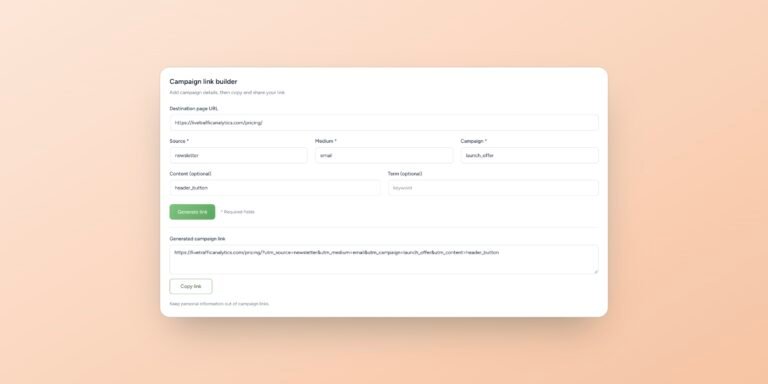
Live Traffic Analytics includes a free Campaign / UTM tab with a built-in link builder. It captures source, medium, campaign, content, and term, then groups sessions by each UTM combination. You can learn the full workflow in our guide to tracking UTM campaigns in WordPress, or on the campaigns feature page.
A simple pairing routine
- Go to Traffic Analytics → Campaign / UTM and build a tagged link for each place you share content: newsletter, Instagram bio, YouTube description, LinkedIn post.
- Use those tagged links everywhere you share, especially in channels that often show up as Direct.
- After a week or two, compare the source breakdown in Overview with the Campaign / UTM report.
- If Direct shrinks while tagged newsletter sessions grow, you have moved visits from “unknown” to “known.”
Keep your naming consistent. If one link says newsletter and another says Newsletter or email, they will appear as separate combinations and your report gets harder to read.
Turning source data into decisions
Source data is only useful if it changes what you do. Here are practical ways to act on it without over-reading a single week.
- Search is steady, social is spiky. If Google and Bing send consistent visits, keep your best-performing pages fresh. Check Traffic Analytics → Top Pages to see which ones people land on.
- One social channel clearly leads. Put more effort there before spreading thin across every network.
- A referrer you did not expect appears. Someone may have linked to you. Visit the page if you can, and consider thanking the author.
- Reddit or X sends a burst. Make sure the landing page has a clear next step, such as a related article or a sign-up link.
- Direct stays large. Audit where you share links and add UTM tags to the ones you control.
Look at trends over several weeks rather than day to day. Source shares naturally move around, and a small site can see big percentage swings from just a few visits. Our weekly WordPress traffic report template includes a sources check you can copy into your routine.
Why your numbers may differ from other tools
If you also run another analytics tool, you may notice that source totals do not match exactly. That is normal. Tools differ in how they define sessions, detect bots, handle missing referrers, and treat visitors who block scripts.
Live Traffic Analytics stores its data in dedicated tables in your own WordPress database, does not track wp-admin visits, and separates bot traffic from human visits. Those choices affect totals. Use each tool for trends and direction, not as a perfect match of the other. If you are weighing whether to rely on a WordPress-native tool, our Google Analytics alternative guide covers the trade-offs.
Frequently asked questions
Is the traffic sources report part of the Free plugin?
Yes. The referrer and source breakdown is in the Free Overview. Pro adds visitor-level reports such as User Activity and User Journeys, which you can compare on the pricing page.
Why is Direct my biggest source?
Direct includes every visit that arrived without a referrer, such as email clicks, app links, bookmarks, and some privacy settings. Adding UTM tags to links you share helps label more of those visits.
Does the source report show which ad was clicked?
No. It shows referring sites and, through the Campaign / UTM report, tagged sessions. It does not track ad clicks or attribute sales.
Why does a source show up but with very few visits?
Small numbers are common, especially on newer sites or short reporting windows. Widen the window in Settings and watch the trend over several weeks before deciding a channel is not working.
Start reading your traffic sources today
Understanding where visitors come from is one of the simplest ways to focus your effort. Start with the Free source breakdown, add UTM tags where you control the link, and check the trend every week. See the documentation for setup details, then install Live Traffic Analytics free from WordPress.org and see your WordPress traffic sources inside wp-admin.