Many WordPress site owners set up Google Analytics years ago and now only open it to answer a few simple questions. If that sounds familiar, a Google Analytics alternative for WordPress that lives inside your dashboard may be a better fit. This article explains what a useful alternative should include, where a WordPress-native tool shines, and where its limits are.
Why site owners look for an alternative
Google Analytics is a capable platform used across the web. It is built for a wide range of businesses, from small blogs to large online stores, and that breadth comes with a learning curve. For someone who just wants to know which posts people read, the setup and reports can feel like more than they need.
The reasons people start looking elsewhere usually fall into three groups:
- Complexity. Finding a basic answer, like “what were my top pages this week?”, can take several clicks through menus and report builders.
- Data ownership. Some owners prefer that visit data stays on their own server instead of in a third-party account.
- Working inside wp-admin. If you already manage content, plugins and settings in WordPress, it is convenient to see traffic in the same place.
None of these mean Google Analytics is the wrong choice for everyone. They simply explain why a lighter option appeals to many WordPress users.
What a useful alternative should provide
Before comparing tools, decide what you actually need to see. For most content sites, small business sites and blogs, the essentials look like this:
- Visitors, page views and sessions over time
- Where visitors come from (search engines, social networks, direct visits)
- Which pages get the most views
- Device, browser and country breakdowns
- Campaign tracking for links you share
- Privacy controls, such as IP anonymization and data retention
If a tool covers these well and you can read the reports without training, it is doing its job. Extra features only matter if you will use them.
The WordPress-native approach
Live Traffic Analytics is a WordPress plugin that records visits and keeps the data in dedicated tables in your own WordPress database. There is no external analytics account to create and no separate login. You open Traffic Analytics in the WordPress sidebar and your reports are there.
Because it runs inside WordPress, it also understands WordPress things. It can report on real WordPress 404 pages, inspect the SEO output of your published pages, and skip admin visits so your own editing does not inflate the numbers.
There is a trade-off to understand: reports start from visits recorded after you install the plugin. If you switch, historical data from another tool stays where it is. Many owners run both side by side for a while before deciding.
What you get in the free plugin
The free version covers the everyday questions most site owners ask. Here is a quick tour of the main tabs.
Overview
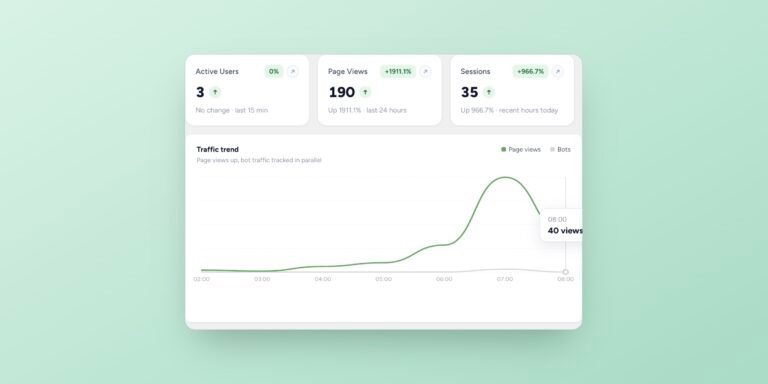
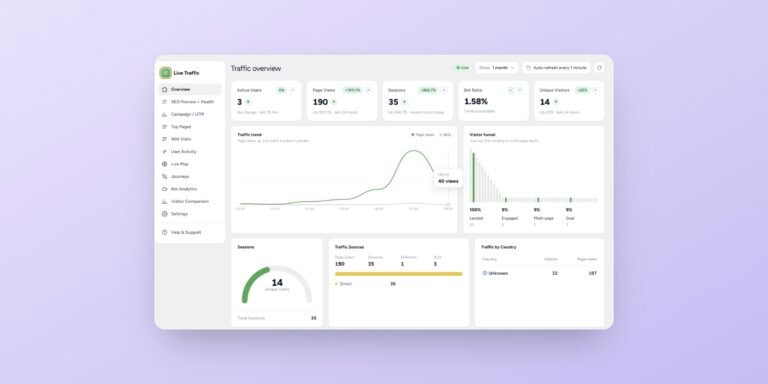
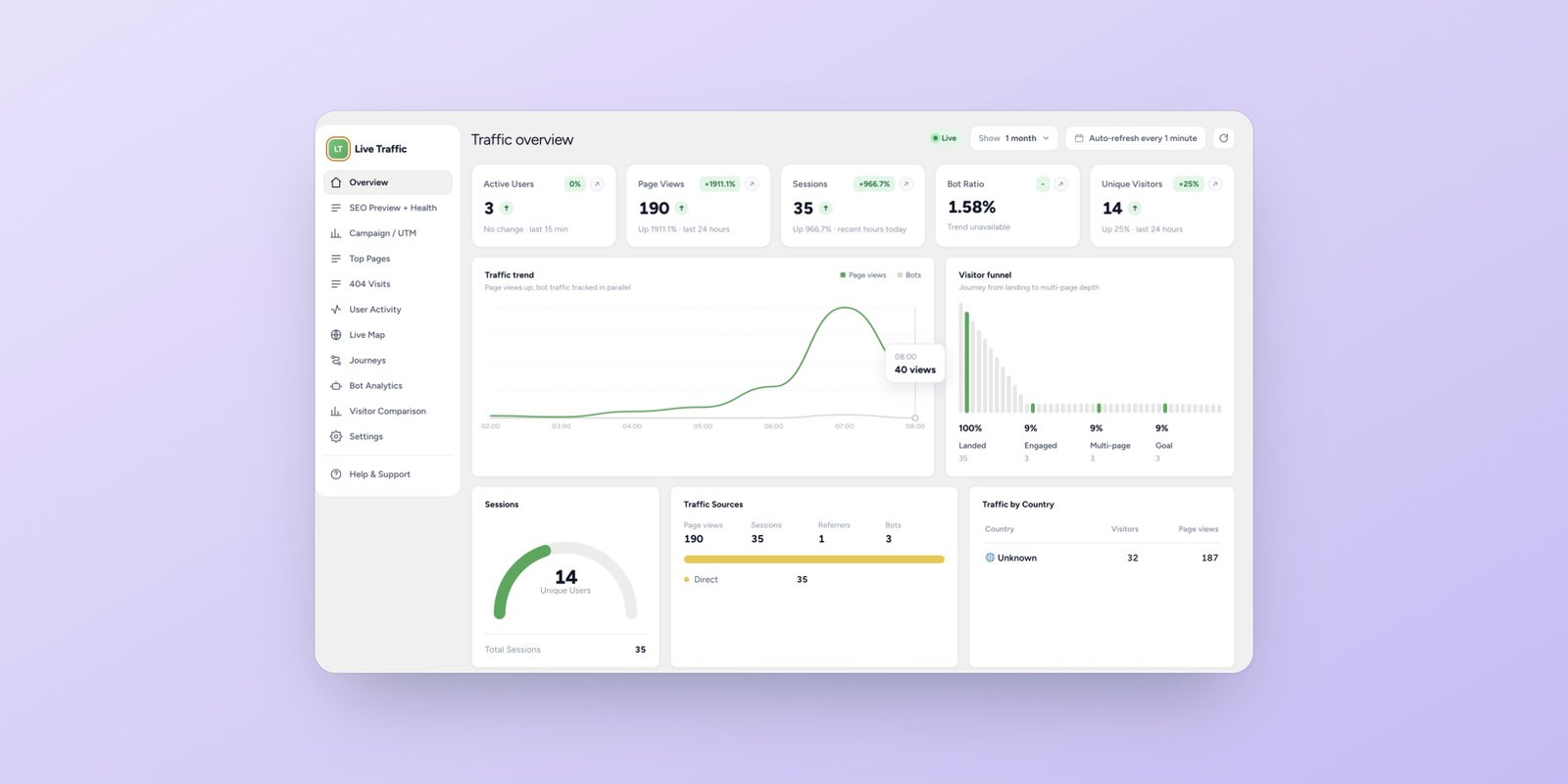
Active users right now, page views, sessions, unique visitors, a 24-hour trend and change indicators. It also shows device, browser, country and referrer breakdowns, a visitor funnel (Landed, Engaged, Multi-page, Goal), and the bot ratio so automated traffic does not mislead you. See the Overview features for a full list.
Top Pages
A ranked list of your most viewed pages with the latest visit time, shown in 10, 20 or 30 rows. Bot traffic is excluded from these totals.
Campaign / UTM
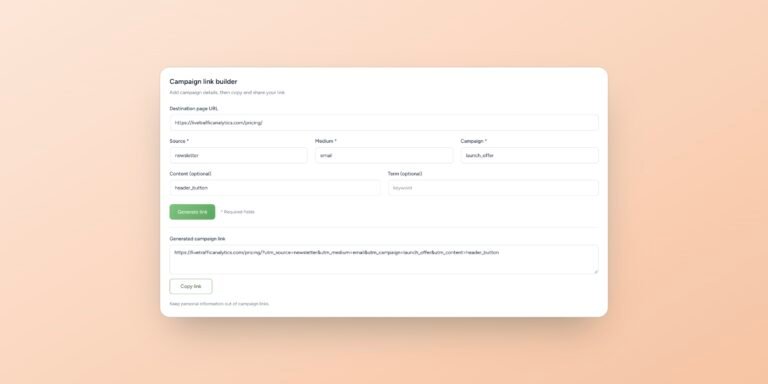
A built-in link builder and reports that group sessions by UTM source, medium, campaign, content and term. Our guide on tracking UTM campaigns in WordPress covers it in depth.
404 Visits
Recorded visits to missing pages, grouped by the missing path and the referring site, with bots excluded.
SEO Preview + Health
A Google-style desktop and mobile preview plus checks for titles, meta descriptions, H1s, canonicals, noindex rules, image alt text, broken links, sitemaps and more. Learn more on the SEO features section.
What Pro adds
Some owners want to go beyond totals and see visitor-level detail. Live Traffic Analytics Pro unlocks these reports in the same plugin:
- User Activity: recent individual visitor records with browser, device, referrer and time-on-page details.
- User Journeys: the ordered pages a visitor viewed during a session.
- Live Map: a real-time world map with visitor markers, using OpenStreetMap tiles.
- Detailed Bot Analytics: a named-bot breakdown beyond the free bot ratio.
- Visitor Comparison: today versus yesterday, with an hour-by-hour chart.
- Export (Pro): download your analytics as CSV or PDF.
Pro plans differ only by the number of sites, not by features. You can compare them on the pricing page.
Honest boundaries
A good alternative is clear about what it does not do. Live Traffic Analytics is a traffic and site-health tool, not an advertising platform. Keep these limits in mind:
- It is not an ad-conversion platform. It reports visits and campaign sessions, not ad clicks, sales or revenue attribution.
- It does not replace Google Search Console. It does not show search rankings, impressions or indexing status. Search Console remains the place for that data.
- It does not replace your SEO plugin. The SEO checks inspect what your published pages output. You still edit titles and descriptions in WordPress or your SEO plugin.
- Numbers will not match other tools exactly. Every analytics tool counts a little differently.
Many site owners use Live Traffic Analytics for daily traffic questions and keep Search Console connected for search data. That combination covers a lot of ground without much setup.
Decision checklist
Use this table to decide whether a WordPress-native tool fits your site.
| If this describes you | A WordPress-native tool is likely a… |
|---|---|
| You mainly want visitors, top pages and sources | Good fit |
| You prefer keeping visit data in your own database | Good fit |
| You want reports in wp-admin without another login | Good fit |
| You want to see 404 visits and SEO output checks in one place | Good fit |
| You rely on ad-platform conversion and revenue reporting | Poor fit on its own; keep your ad and commerce tools |
| You need years of historical data from day one | Partial fit; keep your old tool for history |
| You need search rankings and impressions | Use alongside Google Search Console |
Tip: Run the free plugin alongside your current setup for a few weeks. Compare the trends, not the exact totals, and see which reports you actually open.
Privacy controls to set on day one
If data ownership is part of your reason for switching, take five minutes in Traffic Analytics → Settings. Turn on “Anonymize visitor IP addresses” so the last part of each IP is stored as 0. Choose a “Keep data for” period and enable automatic cleanup if you do not need old records. These controls help you keep only what you need. For questions about your legal obligations, talk to a legal adviser. The documentation explains each option.
To see how the live numbers work in practice, read how to see live visitors on your WordPress website, or learn how to find your most popular WordPress pages.
Frequently asked questions
Can I use Live Traffic Analytics and Google Analytics at the same time?
Yes. They work independently, so you can run both while you compare reports and decide what you need.
Does it import my old Google Analytics data?
No. Reports start with visits recorded after you install the plugin. Your historical data stays in your existing tool.
Does it show search rankings or impressions?
No. For rankings, impressions and indexing status, use Google Search Console. Live Traffic Analytics focuses on visits and published-page checks.
Where is the data stored?
In dedicated tables in your own WordPress database, managed from the Settings tab.
Try the simpler option first
You do not have to commit to anything to find out if a WordPress-native tool suits you. Try the free Live Traffic Analytics plugin first, then look at the Pro visitor-level reports if and when you need more detail.