You just shared a new post, sent a newsletter, or launched a page, and you want to know if anyone is actually showing up. Seeing live visitors in WordPress answers that question in seconds, without opening a separate analytics account. This guide shows you how to check active visitors from inside wp-admin, what each number means, and how to read live data without jumping to conclusions.
What “live visitors” actually means
A live visitor count is not a lifetime total. It shows the people who have been active on your site within a recent time window, so the number rises and falls throughout the day as visitors arrive and leave.
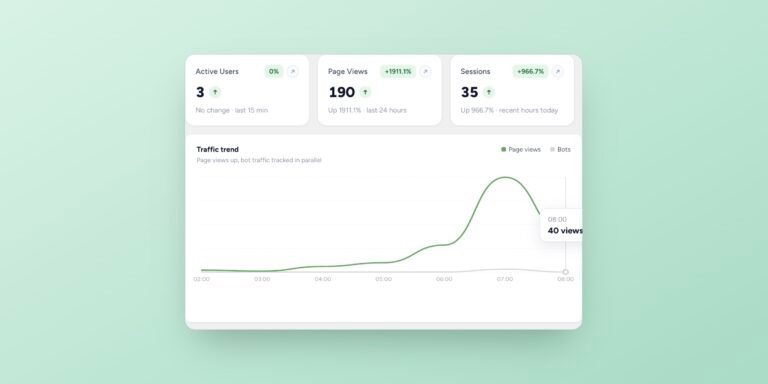
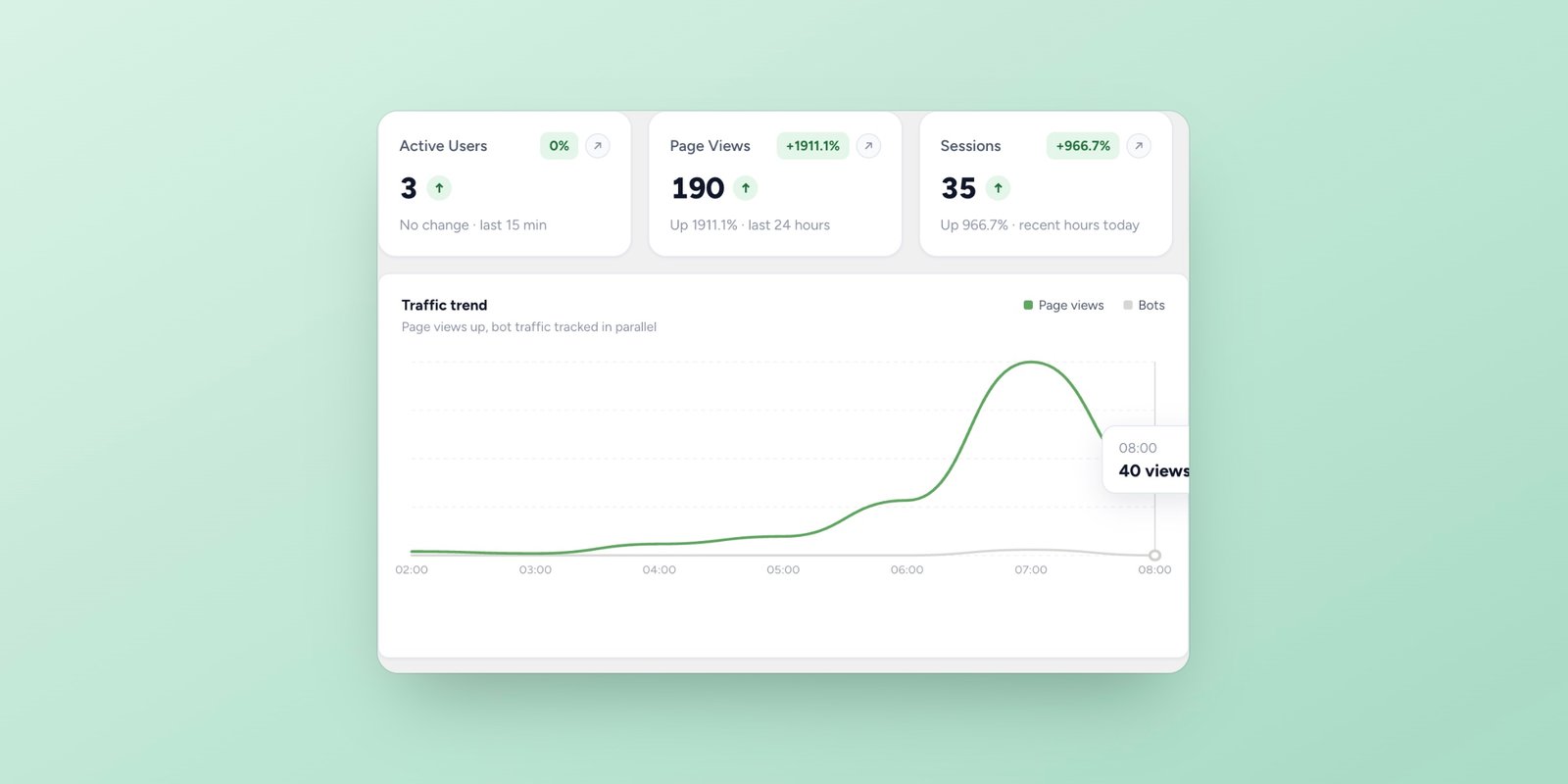
That makes it a different kind of number from page views or sessions. Page views add up over a reporting period. Active users are a snapshot of right now. If you see 6 active users, it means 6 visitors have recently sent a sign of activity, not that 6 people visited today.
Keep that difference in mind and live data becomes much easier to trust and use.
Why it helps to watch visitors in real time
Real-time numbers are most useful when something has just changed. Instead of waiting a day for reports to fill up, you can see the first response almost immediately. Common moments when site owners check live visitors include:
- After sharing a post on social media or in a community forum, to see whether the link is getting clicks.
- During a launch, when a new product page or offer goes live.
- After sending an email, to see when readers start arriving.
- When something feels off, such as a sudden spike or a quiet afternoon that is usually busy.
Live data is a quick pulse check. For decisions about content or marketing, you will still want to look at trends over days and weeks.
Step 1: Install the plugin and open the Overview
Live Traffic Analytics is a free WordPress plugin that records visits and stores the data in dedicated tables in your own WordPress database. You do not need a Google Analytics account or any tracking code from another service.
- In wp-admin, go to Plugins → Add New Plugin.
- Search for “Live Traffic Analytics”.
- Click Install Now, then Activate.
You can also download it from the Live Traffic Analytics page on WordPress.org. Reports begin with visits recorded after you install the plugin, so give it a little time before expecting full charts.
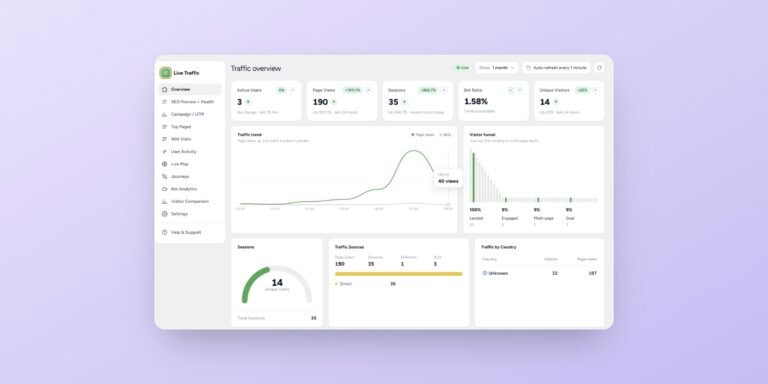
After activation, a new Traffic Analytics menu appears in your WordPress sidebar. Click it and you land on the Overview tab. This is where your live visitor count sits, along with the main traffic numbers for your selected reporting window.
One thing to know before you test: visits to wp-admin are not tracked. If you open your own homepage in another browser tab while logged in to the dashboard, the admin pages you browse will not count. To test the count, visit a public page from a phone or a private window.
Step 2: Read the core metrics
The Overview dashboard gives you more than a single live number. Here is what each part tells you and how to use it.
| Metric | What it shows | Good question to ask |
|---|---|---|
| Active users | Visitors active within the recent time window | Is my latest share bringing people in right now? |
| Page views | Total pages viewed in the reporting window | How much content are people reading overall? |
| Sessions | Separate visits, each of which can include several pages | Are more visits happening, or are the same visitors reading more? |
| Unique visitors | Distinct visitors in the reporting window | Am I reaching new people? |
| 24-hour trend | Page views and active users over the last day | When is my site busiest? |
| KPI change | Change indicators for views, sessions and unique visitors | Is this period moving up or down? |
Where visitors come from
The referrer and source breakdown shows which sites sent your visitors, including Direct, Google, Bing, DuckDuckGo, Yahoo, X/Twitter, Facebook, LinkedIn, Instagram, Reddit and YouTube when that information is available. If you just posted on LinkedIn and see LinkedIn visitors appear, you have a clear signal that the post is working.
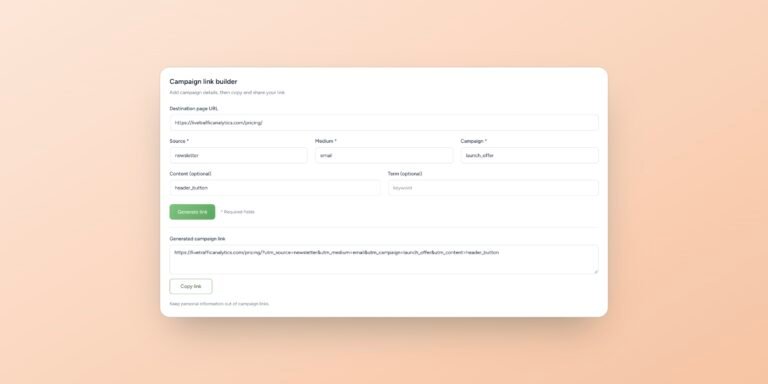
For more precise tracking of specific links, add UTM tags. Our guide on how to track UTM campaigns in WordPress walks through it step by step.
Countries, devices and browsers
The Overview also breaks traffic down by visitor country, device type and browser. These help you answer practical questions: is most of my audience on mobile, and should I test that new layout on a phone first? Country data comes from your host or CDN headers, so on a local test site or on some hosts it can show as “Unknown”.
Bot ratio
Not every visit comes from a person. The Overview shows a bot ratio, bot count and human-visitor count, so you can tell whether a spike is real readers or automated traffic. This is a good habit to build before celebrating a sudden jump.
Tip: If your live count stays at zero while you know people are on the site, check whether you are only browsing admin pages, and give the plugin a few minutes after install to start recording.
Why your numbers may differ from other tools
If you also use another analytics service, do not expect the numbers to match exactly. Different tools count visits in different ways, and none of them is perfectly precise. Common reasons for differences include:
- Different time windows for what counts as “active”.
- Bot filtering that works differently from tool to tool.
- Admin visits, which Live Traffic Analytics does not track.
- Browser settings and blockers that stop some trackers from running.
- Install date, since reports only include visits recorded after setup.
The useful question is not “which number is right?” but “which direction is it moving?” Compare trends inside one tool rather than mixing figures from several.
Settings and privacy
Adjusting refresh speed and data history
Under Traffic Analytics → Settings you can control how often the dashboard data refreshes and how often the visitor heartbeat updates, anywhere from 10 seconds to 7 days. A faster refresh feels more “live” while you watch a launch. A slower one reduces how often the dashboard asks for new data on a busy site.
The same screen lets you choose how much history the dashboard shows with “Show data from the last” (All time, or 1 to 12 months). The documentation explains each setting in more detail.
Keeping visitor data private
Because the data is stored in your own WordPress database, you stay in control of it. If you prefer not to store full IP addresses, turn on “Anonymize visitor IP addresses” in Settings. The last part of each IP is then stored as 0 (for example, 203.0.113.0), and country reports still work. Earlier records are not changed, so it is best to decide on this early.
You can also set automatic cleanup of old data. Live data is a tool for understanding your site, so use it to improve pages and content, not to single out individual people.
When you need more detail
The free Overview answers “how many people are here and where did they come from?” Some site owners eventually want to see what each visitor did. Live Traffic Analytics Pro adds visitor-level reports such as User Activity, User Journeys, an interactive Live Map and Visitor Comparison (today versus yesterday). You can compare plans on the pricing page.
If you are weighing up whether to move away from a larger analytics platform, read our look at a simple Google Analytics alternative for WordPress. And if you want to show a live visitor number on the front end of your site, see how to add a live visitor counter in WordPress.
Frequently asked questions
Does the live visitor count include me when I am logged in?
Visits to wp-admin are not tracked. To test the count, open a public page in a private window or on another device.
Do I need a Google Analytics account?
No. Live Traffic Analytics records visits and stores the data in your own WordPress database, so no external analytics account is needed.
Why does country show as “Unknown”?
Country data comes from host or CDN headers. On localhost and on some hosting setups those headers are missing, so the country can appear as “Unknown”.
Will I see visits from before I installed the plugin?
No. Reports start with visits recorded after installation, so your charts will fill in over the following days.
Start watching your live visitors
Seeing who is on your site right now is one of the quickest ways to learn whether a post, email or launch is landing. Install Live Traffic Analytics free and check your active WordPress visitors from the Overview tab today.